
Series 05
Kopo Kopo
Series 05
Kopo Kopo
Getting started
Setting Up STK Push Checkout on Your POS
How STK Push checkout works at a Kenyan till — the customer gets the prompt on their phone, confirms the amount, and the sale closes itself. Setup, testing, and what can go wrong.
25 August 2026 · Kiosk
STK Push is the fastest way to take M-Pesa at a Kenyan counter: the till sends the payment prompt to the customer's phone, they confirm the amount and enter their PIN, and the sale closes itself. No typing till numbers into a phone, no 'confirm with M-Pesa' back and forth.
This guide covers how STK checkout works, what the cashier sees at every step, and how to test it safely before a real queue relies on it.
1. Where STK Push Comes From
STK Push runs on the same KopoKopo gateway you connected for payments — the same credentials, the same till number. At checkout, M-Pesa appears as a tender option marked 'Your till STK.' Tap it, enter the customer's number, send the prompt, and the sale completes on confirmation.
2. The Flow, Step by Step
- Ring up the sale — the cart shows the total.
- Tap M-Pesa — the tender tile marked 'Your till STK.'
- Enter the customer's number — area code and number; the till checks it's a valid Kenyan mobile before sending.
- Send the prompt — the till shows Sending, then Waiting on the number.
- The customer confirms — amount and PIN on their phone; the till shows Confirmed and completes the sale: receipt, stock, shift record.
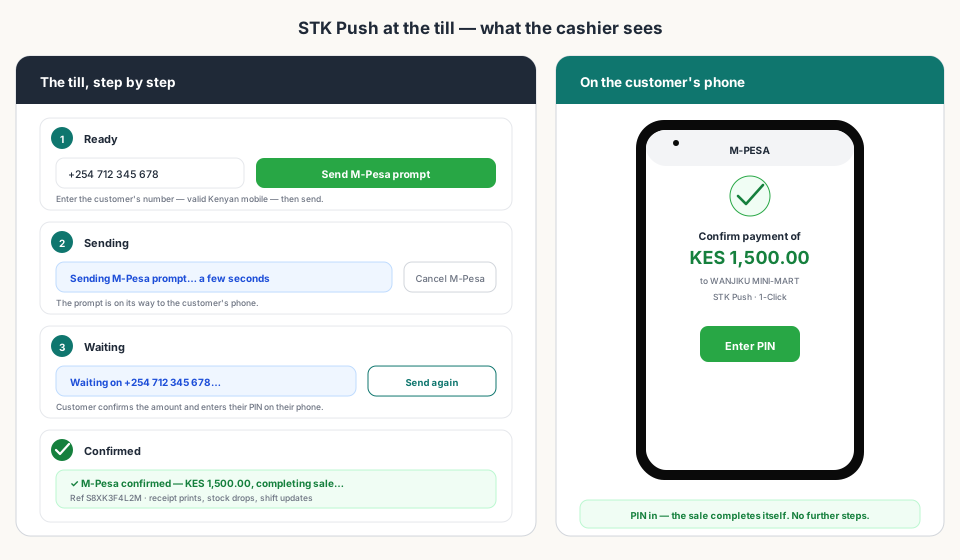
3. What Each Till State Means
The states are the whole story: Ready (enter the number, send the prompt), Sending (the prompt is on its way), Waiting (the customer has it — you can send again if needed), Confirmed (green, with the locked amount and a reference — completing the sale), and Failed (red, with a retry).
4. The Two M-Pesa Modes
STK Push is the till-initiated mode. The other is the customer-initiated one: the customer pays the Buy Goods till number directly while the till listens — the cashier can keep adding items, and the sale completes when Kopo Kopo confirms. Both are built into the same M-Pesa tender.
| STK Push | Buy Goods till | |
|---|---|---|
| Who starts it | The cashier, from the till | The customer, on their phone |
| Customer sees | A prompt: amount + Enter PIN | The normal M-Pesa Buy Goods flow |
| Cashier does | Enter number, send, wait for Confirmed | Nothing — the till listens and completes |
| Best for | Fast checkout with the customer at the counter | Customers who already pay the till directly |
5. Testing Without Risk
- Ring up a KES 10 sale — a nominal item or a price override.
- Pay it with your own number — confirm the prompt on your own phone.
- Watch the till go Sending → Waiting → Confirmed, and the sale close itself.
- Check the shift record: KES 10 in M-Pesa, matched, no manual entry.
If the test fails, it's almost always one of three things: the number format, the gateway not being ACTIVE, or the environment not matching where the money actually lands — the same checks as the connection guide.
6. What Can Go Wrong (and the Fix)
- Wrong number — the till rejects it before sending.
- Prompt failed — retry; usually a declined or expired prompt.
- Customer takes too long — send again from the Waiting state.
- Till offline — STK needs a connection, and the send is blocked until it's back.
- Keeps failing — check gateway ACTIVE and the environment.
Read next:
- Kopo Kopo Integration for POS Systems: The Complete GuideThe pillar guide — STK Push in the context of the whole integration.
- How to Connect Kopo Kopo to Your POS SystemGet the gateway ACTIVE first — then STK just works.
- Kopo Kopo Buy Goods vs. Till Number vs. PaybillWhen STK, and when the till-direct mode, for your shop.
- Kopo Kopo API Webhooks Explained for Non-DevelopersThe signed confirmation that closes the sale — explained plainly.
- Kiosk.ke's Kopo Kopo IntegrationThe deep-dive on how Kiosk runs both M-Pesa modes.
Frequently asked questions
What is STK Push at a POS?
The till sends the M-Pesa payment prompt straight to the customer's phone. They confirm the amount and enter their PIN, and the sale completes itself — receipt, stock, and shift record, with no further steps.
Do customers need my till number for STK Push?
No. For STK they just confirm the prompt that lands on their phone. The till number is what they use in the other mode — paying the Buy Goods till directly while the till listens.
How long does the customer have to enter their PIN?
STK prompts expire after a short window. If the customer takes too long, the till stays in the Waiting state and the cashier can send the prompt again.
What happens if the prompt fails?
The till shows a failed state with a retry — usually a wrong number, a declined request, or an expired prompt. If it keeps failing, check that the gateway is ACTIVE and the environment matches where customers pay.
Can a customer split a payment between cash and STK Push?
Yes — split payments are built in. Part cash, part M-Pesa on the same sale, one sale record with two payment lines, and the shift still balances itself.
Is STK Push a separate setup from Kopo Kopo?
No. STK runs on the same KopoKopo gateway you connect for payments. Active gateway plus your till number, and STK Push is available at the till — no extra module or subscription.
Related articles
- PaymentsKopo Kopo Integration for POS Systems: The Complete GuideHow Kopo Kopo connects to a POS — Buy Goods tills, STK Push, and signed webhooks that match every M-Pesa payment to a sale automatically. The complete guide for Kenyan retailers.
- Getting startedHow to Connect Kopo Kopo to Your POS System (Step-by-Step)Step by step: connect your Kopo Kopo account to your POS — API credentials, environment, till numbers, webhook subscription, and a test payment before you go live.
- PaymentsKopo Kopo Buy Goods vs. Till Number vs. Paybill: Which One for Your Shop?Buy Goods (till), Paybill, and STK Push all move money through M-Pesa — but they behave differently at the counter. Which one belongs in your shop's till setup?
- PaymentsKopo Kopo API Webhooks Explained for Non-DevelopersWebhooks are how your till finds out a payment happened — in plain English. What a signed payment notification is, why it beats checking messages, and what it means for your shop.
- PaymentsKiosk.ke's Kopo Kopo Integration: Why It's the Best for Kenyan ShopsHow Kiosk.ke connects Kopo Kopo to your till — native STK Push, Buy Goods till matching, signed webhooks, and supplier Send Money — and why that makes it the best Kopo Kopo integration in Kenya.
Ready for a POS built for Kenya?
Start free on Kiosk.ke — barcode POS, native M-Pesa STK, offline sales, and an online storefront from one stock count.