
Series 03
Kiosk vs Odoo
Series 03
Kiosk vs Odoo
Hardware
How to Install a Receipt Printer for Your POS in Kenya (Step-by-Step)
Install a thermal receipt printer on a Kenyan POS in about 15 minutes — USB, Bluetooth, or Ethernet — with screenshots for Windows, macOS, Linux, and Kiosk Cashier.
10 September 2026 · Kiosk
A receipt printer is not a gadget. It is the last handshake of the sale — the scrap of paper a customer folds into a pocket while they still trust you. Installing one on a Kenyan POS should feel like hiring a quiet extra cashier, not surviving a Windows wizard.
This guide is the complete path: pick the right thermal printer, load the paper the right way round, add it to Windows, macOS, or Linux, connect it in Kiosk Cashier, and print a real slip. Plan on about 15 minutes — provided the cable in the box is the data cable. Many shops lose half an hour to a phone charger that only powers the lights.
What you need (and what you can skip)
| Item | Required? | Why |
|---|---|---|
| Thermal receipt printer (58mm or 80mm) | Yes, for paper | No ink. Fast. The only kind a till should use. |
| USB data cable (square USB-B on most units) | Yes, for USB tills | Chargers light the printer and print nothing. |
| Till PC, laptop, or tablet dock | Yes | The helper runs on the machine the printer is attached to. |
| Kiosk Cashier in a browser | Yes | Detect printers lives on the till strip. |
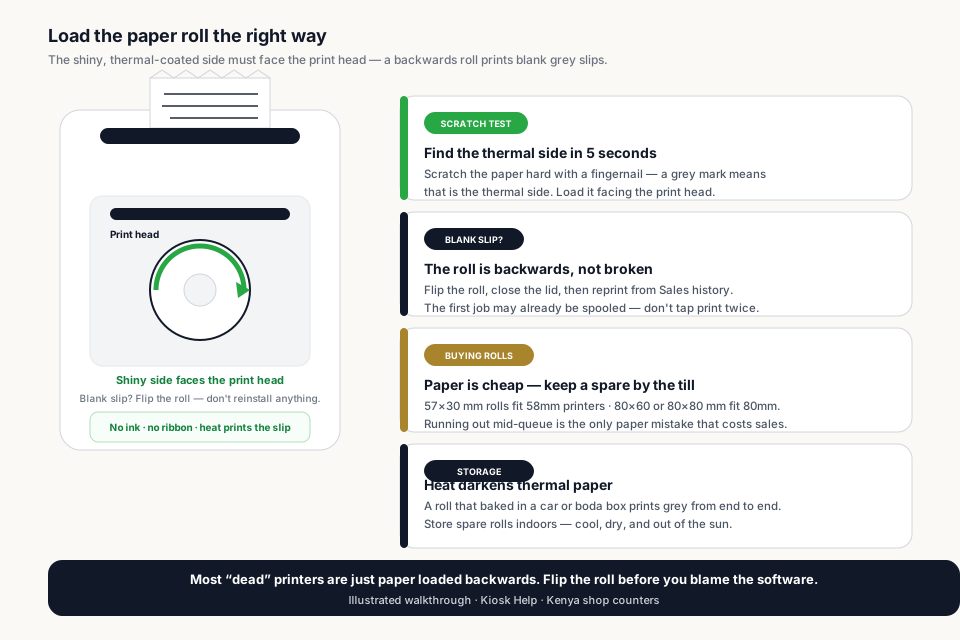
| Thermal paper roll | Yes | Shiny side faces the print head. |
| Cash drawer | No | Nice later. It kicks from the printer, not from hope. |
58mm or 80mm? Match the printer to the queue
| 58mm | 80mm | |
|---|---|---|
| Fits | Dukas, pharmacies, salons, M-Pesa agents | Busy mini-marts, supermarket counters |
| Slip width | Narrow — items wrap to two lines | Wide — items and totals on one line |
| Paper rolls | 57×30 mm — small and cheap | 80×60 or 80×80 mm — fewer changes per day |
| Best when | Sales are short and quick | Carts are long and the queue never stops |
Both widths are thermal, and both speak ESC/POS. If you are unsure, walk into the shop and say “POS printer” — then buy the spare rolls at the same time. Paper is pennies; running out mid-queue is the only paper mistake that costs sales.
Step 1 — Pick a thermal printer and plug it in
Buy the printer and the spare rolls in the same trip. At the counter, ask for a thermal POS printer in your width, and check the box has the square USB-B data cable and a power adapter — some units ship with a charger-only lead that will cost you an afternoon. Inkjet and laser belong in an office, not beside the mango crate.
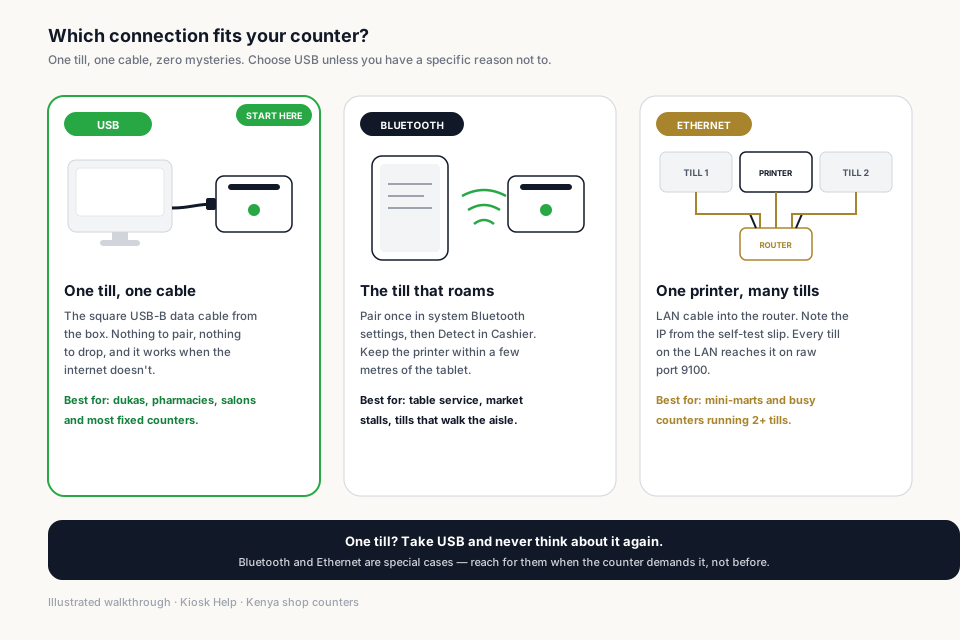
- USB — one till, one cable. Start here.
- Bluetooth — the till is a tablet that walks the aisle.
- Ethernet / Wi-Fi — several tills share one printer on the LAN (raw port 9100).

Before you close the lid, get the paper the right way round. The shiny, thermal-coated side must face the print head — a roll loaded backwards prints blank grey slips and has sent more “broken” printers back to the shop than any real fault. Not sure which side is shiny? Scratch the paper hard with a fingernail: the side that greys is the one that prints.
Step 2 — Add the printer in Windows
Most Kenyan tills are Windows 10 or 11. Plug USB in, switch the printer on, then open Settings → Bluetooth & devices → Printers & scanners. Detect only reads that list. Skip Microsoft Print to PDF and Fax — those are ghosts, not tills.

If Printers & scanners is empty of a real thermal name, hire the printer by hand. Windows will not find many Xprinters on its own:
- Printers & scanners → Add a printer → The printer that I want isn’t listed.
- Add a local printer. Port: USB001, or the COM port Device Manager showed.
- Driver: Generic / Text Only. Name it Xprinter. Set it Online.
- Only then go back to Cashier and Detect. Until that name sits under Printers & scanners, Detect cannot see it.


- Printer ON, lid closed, paper seated shiny-side to the head.
- Data USB cable into the till PC — not a charger-only lead.
- Windows 7 tills use the separate Kiosk Windows 7 Print Bridge package, still downloaded from Cashier.
Step 3 — Add the printer on macOS
On a Mac till: System Settings → Printers & Scanners → Add Printer. Keep the factory name so Detect can read it. Choose a generic ESC/POS or the maker's thermal driver. AirPrint is for office documents — it will not cut a 58mm slip.

Step 4 — Add the printer on Linux
Linux tills speak CUPS. Install cups if needed, add a raw ESC/POS queue (localhost:631 or your desktop Printers app), confirm lpstat shows the printer idle, then run the Kiosk Linux installer. Detect in Cashier is the same button as on Windows — the OS changes, the habit does not.

Step 5 — Open Cashier and download the bridge
The Print Bridge is not an app you hunt in Settings, on the Desktop, or in a WhatsApp zip from last month. It is a till tool. It lives on the Cashier page — the same screen you sell from — behind the quiet chip. Open Cashier on this computer (the one with the printer plugged in). Tap Receipts on screen. Tap Connect a printer. Download from that chip. That is the only doorway we keep.

Step 6 — Detect printers and save the queue
Unzip the package. Windows 10/11: run Install-Palmart-Print-Bridge.cmd (no Node.js needed; it can start hidden at sign-in). Windows 7: the Win7 installer. macOS: Install Palmart Print Bridge.command. Linux: bash install-palmart-print-bridge.sh. Then click Detect printers.

- Choose the row marked (receipt). Skip Fax and PDF.
- If you manage the shop, Detect can save the name onto the branch so every cashier on that till inherits it.
- You can also set the printer under Branches → Receipt details, then Save.
Step 7 — Print a test receipt
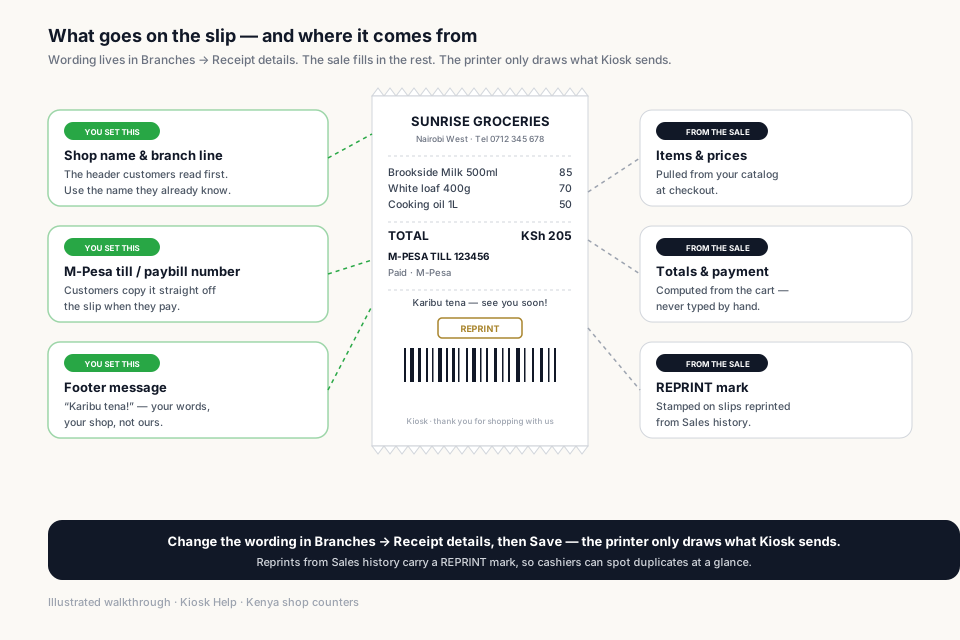
The chip should now show the printer name, not Receipts on screen. Ring a cheap test item, complete the sale, and watch the paper feed and cut. Shop name, M-Pesa till, and footer come from Branches → Receipt details — fix the wording there, not on the printer.

Wondering what each line on the slip is, or where to change it? Every line has exactly one source:
When nothing comes out
Work down the flow below and stop at the first row that fails. Then read the Detect toast — it tells you which room is empty.
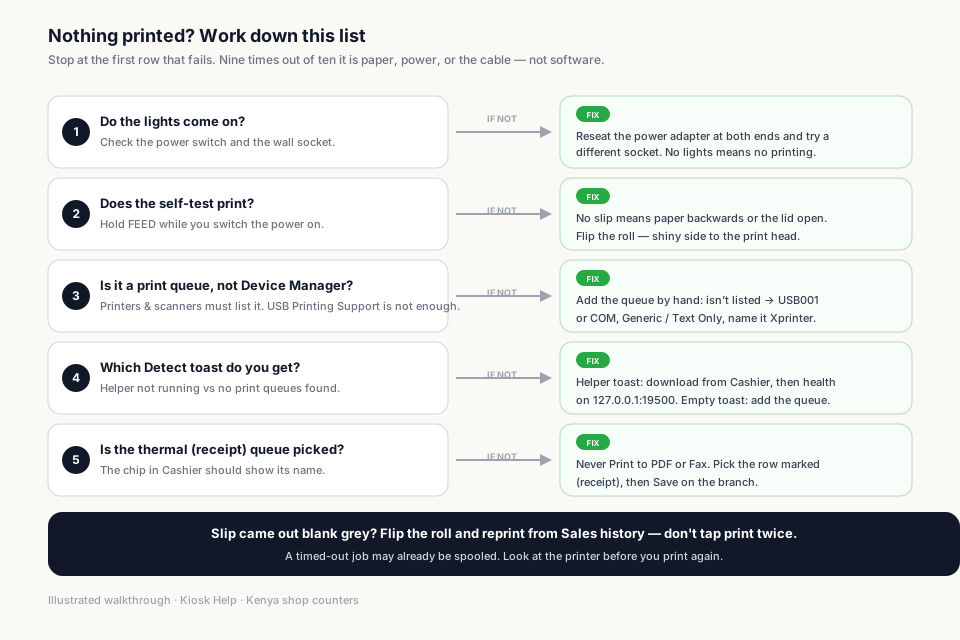
Which Detect toast do you get?
Tap Detect printers once. The toast is the diagnosis. Do not keep tapping.

| Symptom | Likely cause | Fix |
|---|---|---|
| Lights on, no paper | Charger cable, or roll seated backwards | Use the square data USB. Flip the shiny side to the head. |
| Detect: helper not running | Bridge never started on this PC | Cashier → Connect a printer → download. Then http://127.0.0.1:19500/health. Run Install-Palmart-Print-Bridge.cmd. |
| Detect: no print queues found | Xprinter never became a Windows queue | Add printer isn’t listed → USB001 or COM → Generic / Text Only → name Xprinter, Online. Detect again. |
| PDF or Fax selected | Windows defaulted to a virtual printer | Pick the thermal (receipt) queue and Save. |
| Prints on another PC | Helper installed in the office | Move the helper to the counter computer. |
| Blank grey paper | Wrong face of thermal roll | Flip the roll. Reprint from Sales history. |
| Cuts mid-logo | 58mm driver on 80mm paper, or the reverse | Match paper width to the printer model. |
| Prints grey from end to end | Roll baked in a hot car or boda box | Bin that roll. Store spares cool, dry, out of the sun. |
The 15-minute version
- Thermal printer ON, paper seated shiny-side to the head, data cable in the till PC.
- Self-test with FEED + power. Confirm a real name under Printers & scanners — not only Device Manager. Skip PDF and Fax.
- Cashier on this PC → Receipts on screen → Connect a printer → download the helper from that chip.
- Run Install-Palmart-Print-Bridge.cmd once on this computer. Confirm http://127.0.0.1:19500/health.
- Detect printers. Read the toast. Empty queues: add Generic / Text Only as Xprinter, then Detect again.
- One test sale. Paper in the customer's hand.
Bottom line
Read next:
- Install a receipt printer (Help Center)The same walkthrough inside Help — for cashiers at the till.
- What Hardware Do You Actually Need?Phone first, scanner second, printer third.
- Set Up a POS in Kenya in 30 MinutesSoftware live the same afternoon — hardware optional.
- Print or share receiptsPaper, screen, or WhatsApp after checkout.
Frequently asked questions
How do I install a receipt printer on a POS in Kenya?
Power on a thermal printer, add it in Windows, macOS, or Linux, install the Kiosk Print Bridge on that same computer, then Detect printers in Cashier and take a test sale. The browser cannot talk to a USB printer without the helper.
Do I need a printer to start selling?
No. Kiosk shows the receipt on screen and can send it on WhatsApp. Add paper when customers start asking for it.
USB, Bluetooth, or Ethernet — which is best?
USB is the shop-floor default: one cable, one till, fewer mysteries. Bluetooth fits a tablet that moves. Ethernet (port 9100) fits one printer shared by several tills on the same LAN.
Why does Detect printers say the helper is not running?
The Print Bridge must run on the computer the printer is plugged into. Open Cashier on that PC, tap Receipts on screen → Connect a printer, and download the helper from that chip. Then open http://127.0.0.1:19500/health. If the page fails, run Install-Palmart-Print-Bridge.cmd on this machine and Detect again.
Device Manager shows the Xprinter. Why is Detect empty?
Device Manager only proves the USB cable and printer are fine. The bridge never looks there. It only lists printers from Settings → Printers & scanners. An Xprinter often shows as USB Printing Support, POS-80, or a COM port and never becomes a print queue. Add a Generic / Text Only queue named Xprinter, set it Online, then Detect again.
Detect says no print queues found, or I only see Fax and PDF. What now?
The bridge is fine. Add the queue: Printers & scanners → Add a printer → The printer that I want isn’t listed → Local printer → port USB001 (or the COM port from Device Manager) → driver Generic / Text Only → name it Xprinter, set Online → Detect again. Until it appears under Printers & scanners, Detect cannot see it.
The printer is on but nothing prints. What should I check?
Confirm it is thermal (not inkjet), the roll is seated shiny-side to the head, you did not pick Print to PDF or Fax, and the Cashier chip shows the real printer name. Then reprint from Sales history — do not hammer print.
The slip came out blank and grey. Is the printer broken?
Almost never. The roll is loaded backwards — the blank side is facing the print head. Flip the roll, close the lid, and reprint from Sales history. If a whole fresh roll prints grey, it baked in a hot car or boda box; store spares cool and dry.
How do I change my shop name or M-Pesa till on the receipt?
In Branches → Receipt details, then Save. The printer only draws what Kiosk sends — wording never lives on the printer itself.
Can I use an Epson, Xprinter, or Caysn printer?
Yes. Kiosk sends ESC/POS, which those common 58mm and 80mm till printers speak. Use the data USB cable from the box, not a phone charger.
Related articles
- HardwareWhat Hardware Do You Actually Need for a POS in Kenya?Phone, scanner, printer — a no-nonsense hardware checklist for a Kenyan retail counter. Start with the phone you own, upgrade when the queue demands it.
- Getting startedSet Up a POS in Kenya in 30 MinutesHow to set up a POS in Kenya in 30 minutes — create your account, add products, take M-Pesa payments, and stay eTIMS-ready with KRA. No IT project required.
- PaymentsWhy M-Pesa Integration Matters (and What 'Native' Really Means)In Kenya, mobile money is how customers pay. What native M-Pesa at the till means — STK Push in one tap, auto-credited sales, and a shift that balances itself.
- GuidesBarcode Search in Kenya: Look Up Any Product by Barcode or NameLook up any product by barcode or name in Kenya — EAN-13, UPC, GTIN. Check prices and stock across Kiosk stores with the free kiosk.ke barcode search.
- ComparisonChoosing the Right POS for Your Business: Kiosk.ke vs. OdooA clear guide to deciding between Kiosk.ke — a turnkey local retail POS — and Odoo, a full enterprise ERP suite. Compare setup time, payments, and who each platform fits.
- RankingsTop 10 POS Systems in Kenya (2026) — Ranked & ComparedBest POS systems in Kenya for 2026, ranked on setup speed, native M-Pesa, eTIMS readiness, and shop-floor fit. Compare Kiosk.ke, Odoo, SimbaPOS, Tiwi, and more.
Ready for a POS built for Kenya?
Start free on Kiosk.ke — barcode POS, native M-Pesa STK, offline sales, and an online storefront from one stock count.