
Inventory & stock
Add products: single, groups, and packages
Add standalone items, group brands into variants, and sell trays and crates — with screenshots for every step.
On this page
Your till and your online storefront share one catalog, so the way you add a product matters. This guide walks through every shape a product can take — a single item, a group with variants, and packages like trays or crates — with screenshots of the exact screens you will see.
Single product vs group — what is the difference?
- Single (standalone) product: one name, one price, one barcode, its own stock. No siblings. Perfect for a one-off item you will never split into sizes.
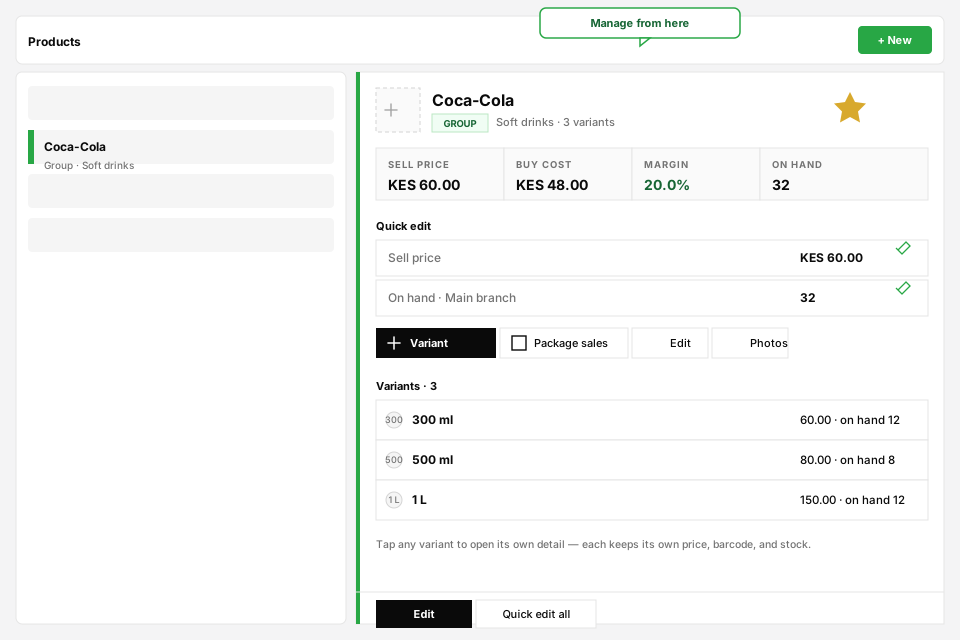
- Group: a brand or family (e.g. Coca-Cola) that is not sold itself. Under it you add Variants — the sellable SKUs (300 ml, 500 ml, 1 L) that each carry their own price, barcode, and stock.
- Variants inherit the group's department and category, so you set classification once instead of repeating it.
- Cashiers and online shoppers search the brand name and pick a size — one clean entry instead of three near-duplicate products.
Add a single product
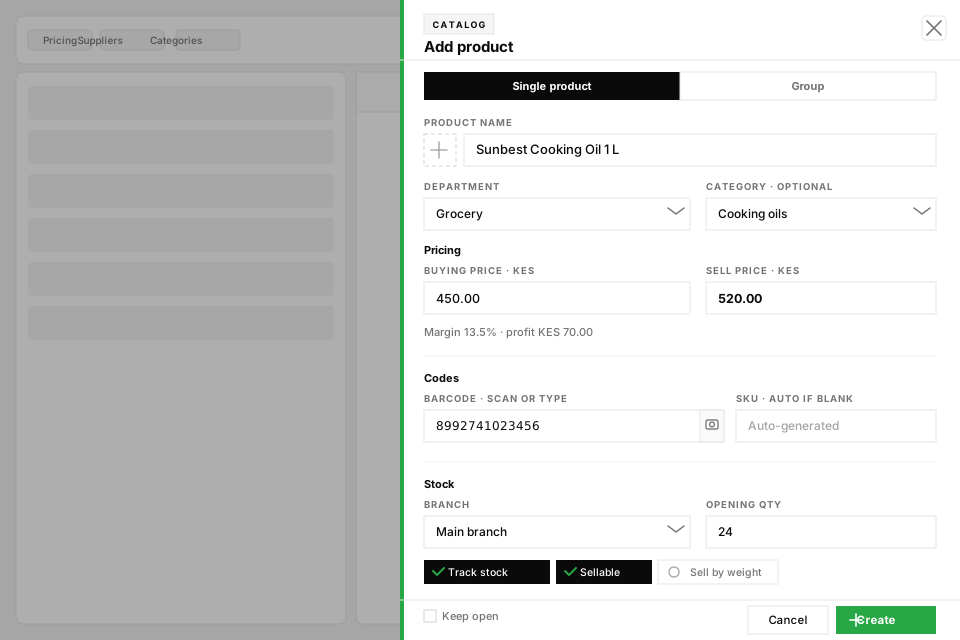
- Step 01Open Products in the dashboard and tap New (top right).
- Step 02Leave Single product selected at the top of the drawer.
- Step 03Type the product name, pick Department, and optionally a Category.
- Step 04Fill Buying price (what you pay) and Sell price (what customers pay). Kiosk shows your margin as you type.
- Step 05Scan or type the Barcode — SKU fills automatically if you leave it blank.
- Step 06Set Opening qty to add stock right away, then tap Create.
Add a group with variants
When the same brand comes in multiple sizes, colours, or packs, create a Group first — then add one Variant per sellable SKU under it.
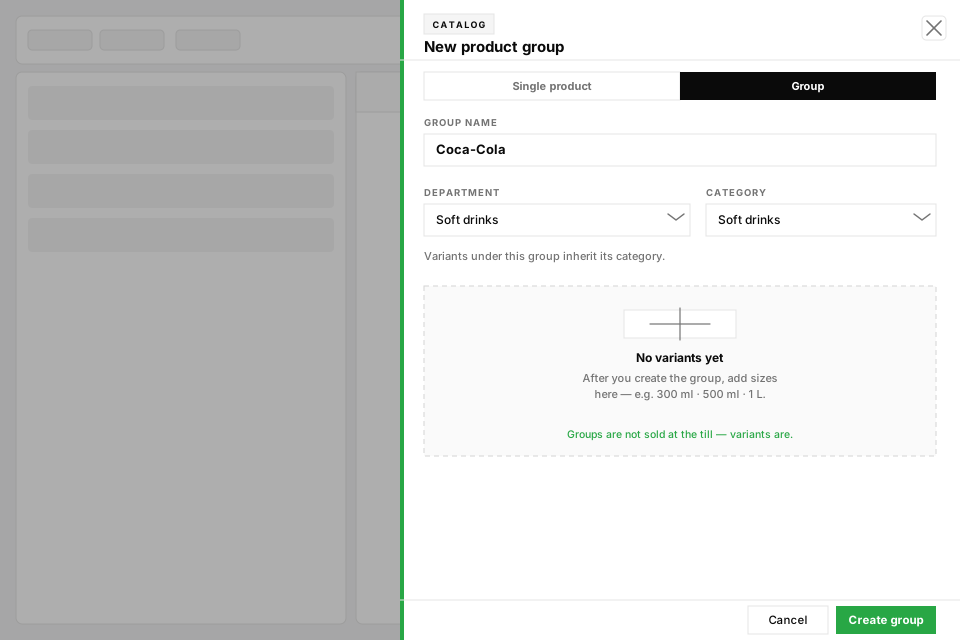
- Step 01Open Products and tap New.
- Step 02Switch the toggle from Single product to Group.
- Step 03Enter the group name (the brand or family — e.g. Coca-Cola), choose Department and Category, then tap Create group.
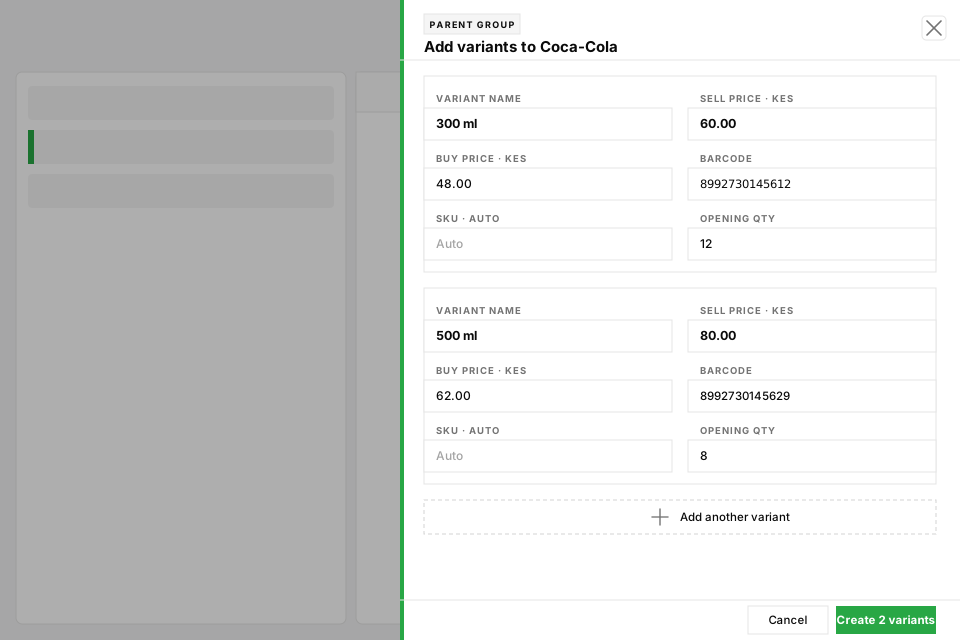
- Step 04Open the group from the catalog and choose Add variant.
- Step 05For each size, enter the Variant name (300 ml, 500 ml), Sell price, Buy price, and Barcode. Use Add another variant to create several at once.
- Step 06Tap Create variants — each variant becomes its own SKU with its own stock, still nested under the group.
Packages: trays, crates, and bundles
Packages let you sell the same item in different units that share one stock pool — for example eggs sold loose (1 piece) or as a tray (30 pieces). Selling one tray deducts 30 pieces from the same inventory, so stock never double-counts.
- Step 01While creating a single product, tick Sell in different units and fill each package row (name, conversion, price).
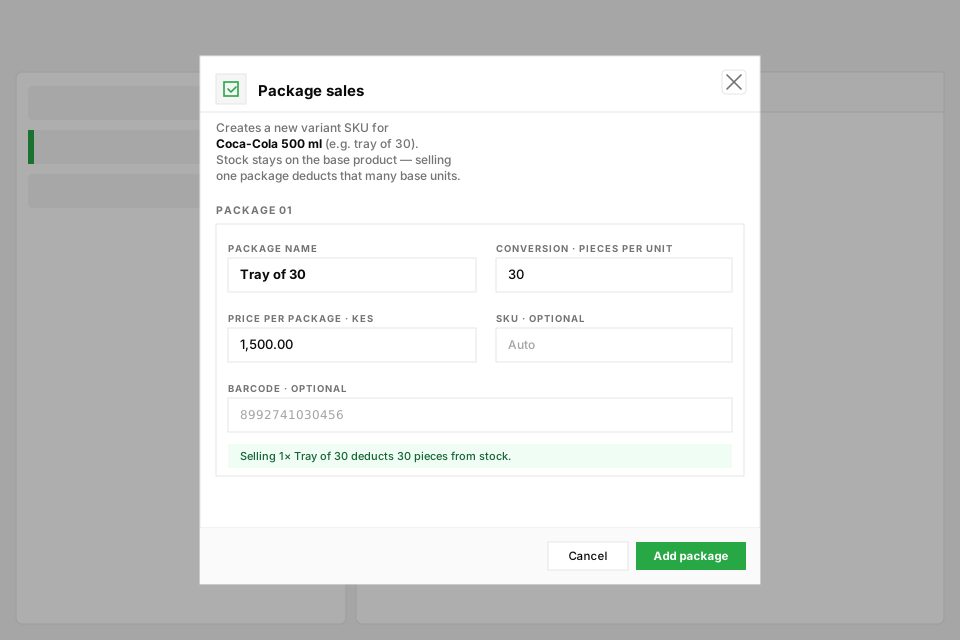
- Step 02Already created? Open the product from the catalog and choose Package sales.
- Step 03Enter the Package name (e.g. Tray of 30), the Conversion (how many base units are in it, e.g. 30), and the Price per package.
- Step 04Add a SKU or Barcode for the package if you want to scan it, then tap Add package — it becomes a variant SKU that shares the base product's stock.
Manage your products after they are created
- Select any product in the catalog to open its detail panel — edit name, SKU, barcode, sell price, and stock inline without leaving the page.
- Use Edit for photos, description, supplier link, and buying cost.
- Add variant grows a family; Package sales adds tray or crate SKUs; Change department moves the product between departments.
- Track down problems from the header: missing barcode, no price, zero stock, and low stock counters filter the list in one tap.
- Big cleanup? Import hundreds of SKUs from Business → Import, or fix barcodes in bulk from Inventory → Missing barcodes.
Frequently asked
I already added sizes as separate single products — can I fix it?
What is the difference between a package variant and an option variant?
Do groups appear on the cashier?
What if an item has no barcode?
How do I stop selling a product?
Related articles
- Add your first productsCreate product groups and variants so one brand (like Coca-Cola) stays tidy at the till, online, and in stock counts.
- Understand stock levelsHow on-hand quantity updates after sales, supplies, and transfers.
- Fix missing barcodesFind products without barcodes and attach codes before peak hours.
- Run a stock takeCount shelves, record variances, and reconcile so reports stay honest.
- Get the most out of KioskThe master guide: one catalog, one till, one storefront. Follow the daily rhythm, then jump into every deeper guide from here.
Still stuck setting up?
Send a message with your business name and subdomain — we will help you get the till selling.