
Getting started
Add your first products
Create product groups and variants so one brand (like Coca-Cola) stays tidy at the till, online, and in stock counts.
Updated 2026-07-213 min read4 sections3 FAQ
On this page
Sales and your online storefront share one catalog. Before your first shift, add products so cashiers can scan instead of typing — and set them up as groups with variants whenever the same brand comes in more than one size, colour, or pack.
Why groups and variants matter
- One place to find the brand — cashiers search “Coca-Cola” and pick 300 ml or 500 ml instead of hunting three separate products.
- Cleaner catalog — stock, pricing, and barcodes live on each variant, while the group holds the shared name and category.
- Variants inherit the group’s category — set Soft drinks once on the group; every size you add stays correctly classified.
- Storefront stays organized — shoppers see one product family with size options instead of a flat list of near-duplicates.
- Easier stock takes and reports — you count and sell by SKU, but browse by brand.
Step 1 — Create a product group
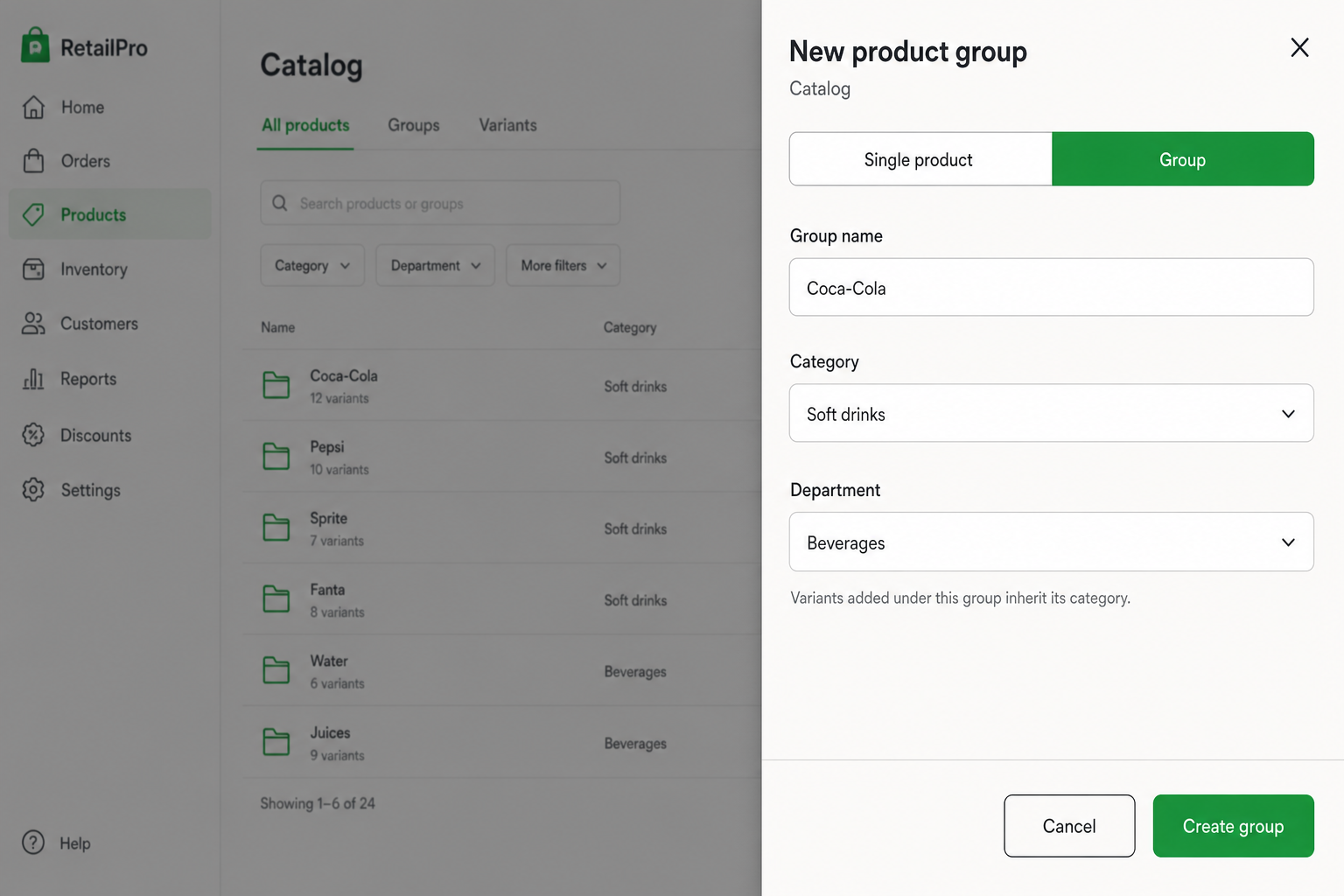
- Step 01Open Products in the dashboard, then choose Add / New product.
- Step 02At the top of the drawer, switch from Single product to Group.
- Step 03Enter the Group name (the brand or family — e.g. Coca-Cola).
- Step 04Pick Category and Department. Variants you add next will inherit this category.
- Step 05Tap Create group. The group itself is not sold at the till — the variants are.
Step 2 — Add variants under the group
- Step 01Open the group you just created in Products.
- Step 02Choose Add variant (on the product detail panel).
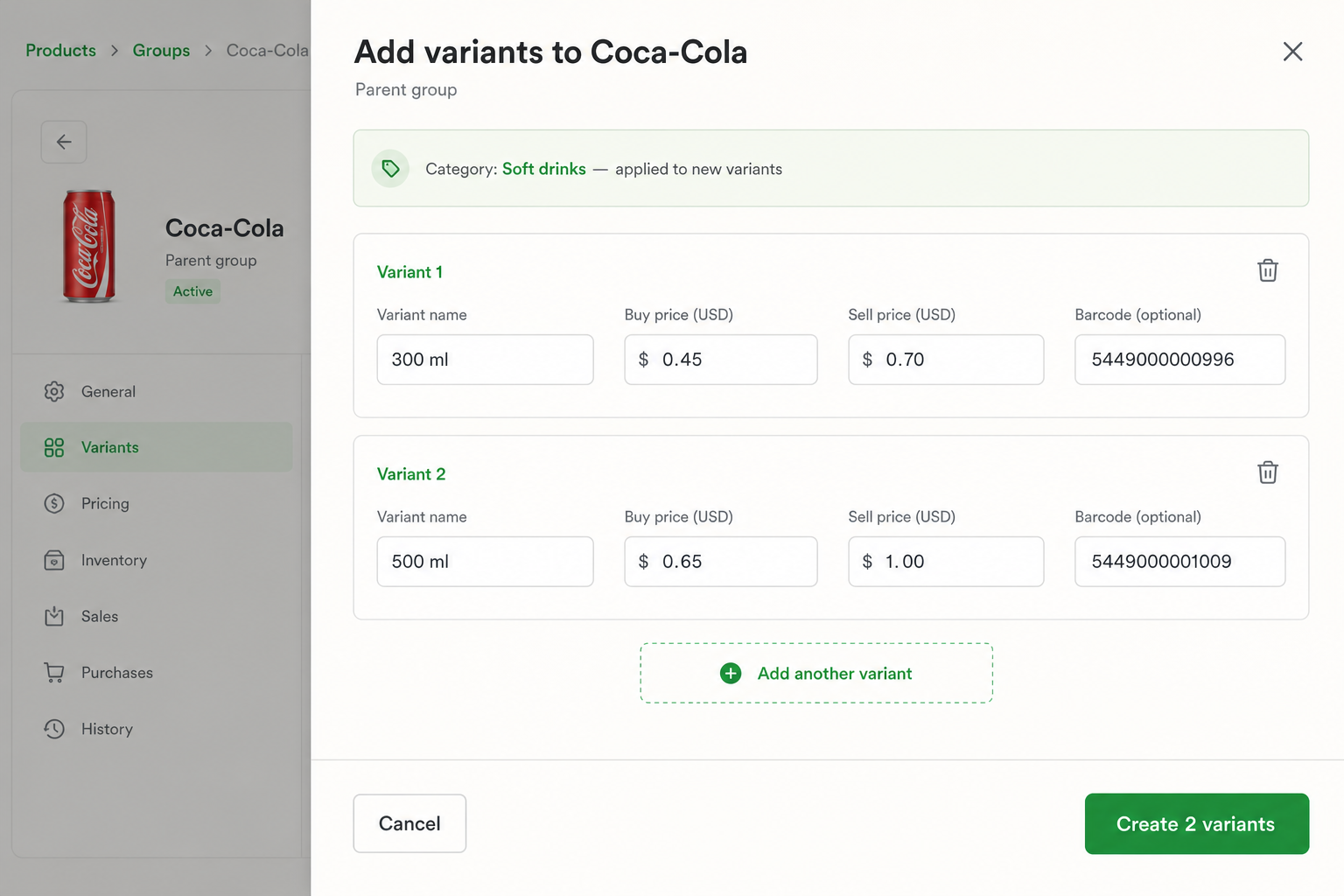
- Step 03For each sellable size or option, enter a Variant name (e.g. 300 ml, 500 ml), sell price, and barcode if you have one.
- Step 04Use Add another variant to create several sizes in one go.
- Step 05Tap Create variants. Each variant becomes its own SKU with its own stock and barcode — still nested under the group.
When a single product is fine
- Truly unique items with no sizes or colours (e.g. one handmade craft).
- You will never add a sibling SKU under the same brand name.
- Step 01Leave Single product selected.
- Step 02Enter name, price, barcode, and opening stock.
- Step 03Optionally enable Sell in different units for trays/crates of that same item.
- Step 04Or import many SKUs at once from Business → Import / CSV — then convert families into groups + variants as you tidy the catalog.
Frequently asked
Can I turn an existing single product into a group later?
Yes — open the product and use Add variant / Add sibling to grow a family under a parent. Starting as a group is cleaner when you already know sizes are coming.
Do groups appear on the cashier?
Cashiers sell variants (the SKUs with prices and barcodes). Searching the brand name surfaces those variants under the group so checkout stays fast.
What if an item has no barcode?
You can still sell it by searching the product or variant name on the cashier screen. Add the barcode later from the product detail when packaging arrives.
Related articles
- Scan barcodes at the tillUse a USB or Bluetooth scanner, or the on-device camera, to ring up items fast.
- Run a stock takeCount shelves, record variances, and reconcile so reports stay honest.
- Add products: single, groups, and packagesAdd standalone items, group brands into variants, and sell trays and crates — with screenshots for every step.
Still stuck setting up?
Send a message with your business name and subdomain — we will help you get the till selling.